Ministerio de S&P Instructions
How to Turn ON Church Tech Equipment
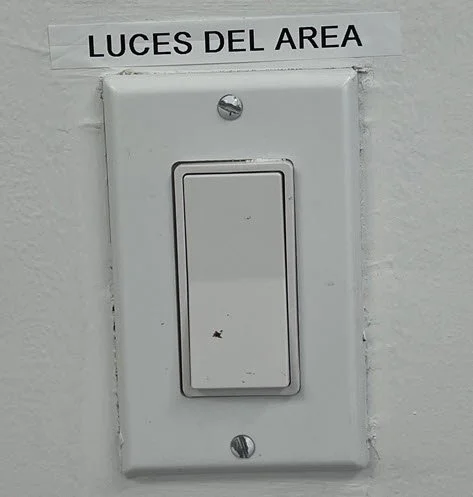
Turn ON the Light
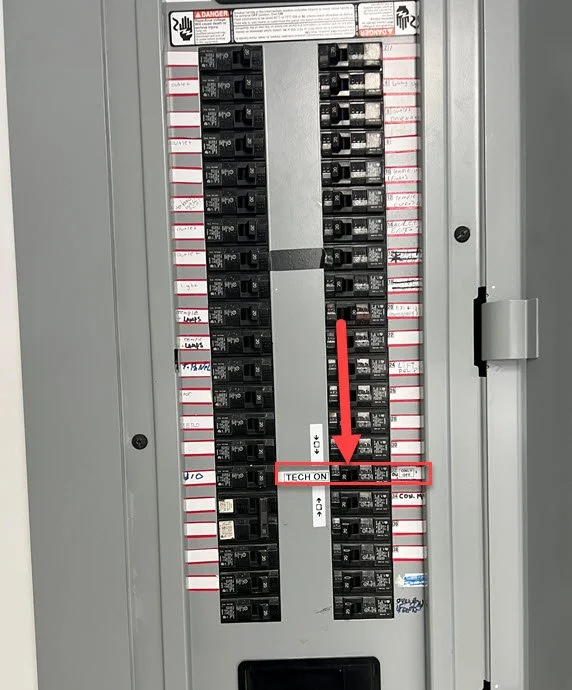
Turn ON the Tech equipment on the Electrical Panel
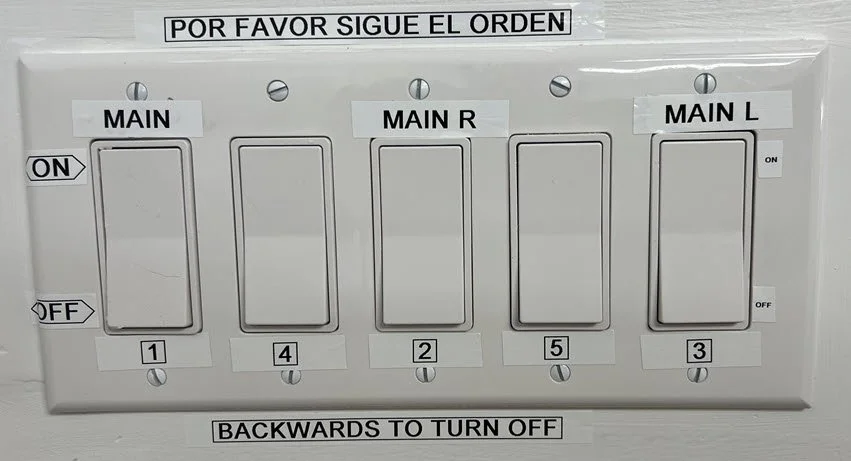
On the Tech Area go to the switch panel and follow the number sequence to Turn ON.
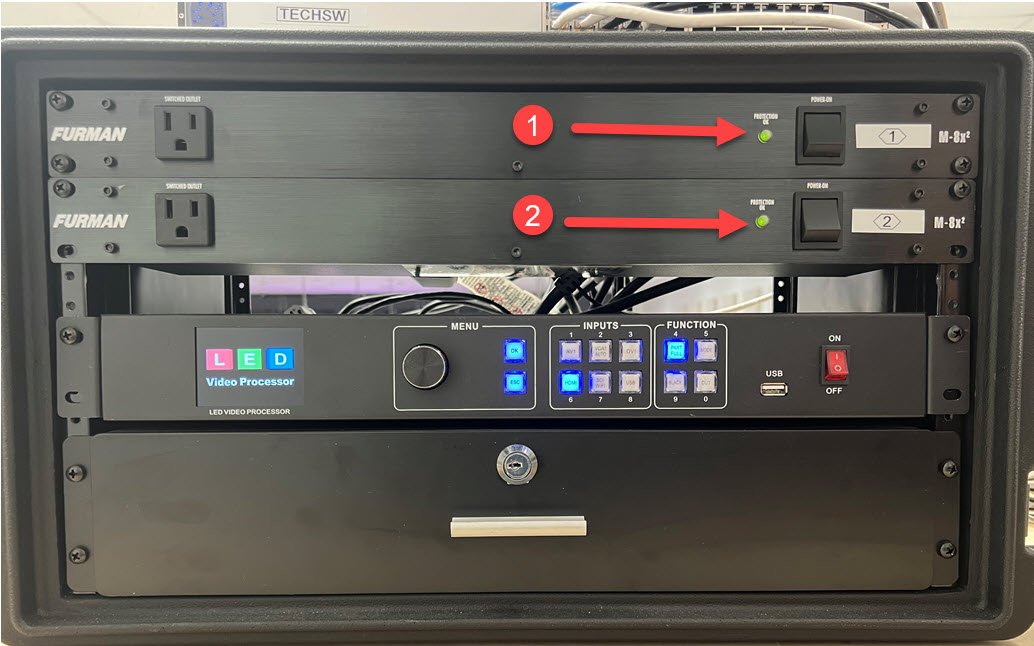
Turn ON FURMAN Power Amp. Please follow the number sequence.
For SOUND TECH
SOUND Console is already ON
Turn on iPad. PIN 7373
Select X32-Mis APP
Tap Connect
For PROJECTION TECH
HP PC
Log on to the HP Computer
Open MagicQ PC
On the MagicQ Mini Connect Console Raise Option 1 always up
APPLE – MAC PC
Turn on iMac (Turn on button is in the back of the Left side of the Screen)
Log on to the iMac
Setup PowerPoint as already instructed
TV
Turn On Multi View TV with the remote control
Turn On Retro TV with the remote control
TEMPORARY ACTIONS DUE TO SCREEN PROBLEMS
CLICK ON APPLE LOGO AND GO TO SYSTEM SETTINGS ON THE MAC
GO TO DISPLAYS
GO TO USB DISIPLAY HDMI (1) DISPLAY
UNDER USE AS -> SELECT MIRROR FOR USB DISPLAY: BLACKMAGIC
GO TO USB DISIPLAY HDMI (2) DISPLAY
UNDER USE AS -> SELECT MIRROR FOR USB DISPLAY: BLACKMAGIC
CLOSE SYSTEM SETTINGS
GO TO POWERPOINT
SELECT SLIDE SHOW -> SET UP SHOW…
SELECT MONITOR 2
VERIFY OUTPUT SHOWS POWER POINT
IF THIS DOESN’T WORK, PLEASE RESTART THE MAC WHILE ALL THE TVS ARE ON.
IF IT DOESN’T WORK AFTER THE REBOOT, REPEAT THE SAME STEPS FROM 1-11.
IF AFTER STEP 13, THE TV IS STILL NOT PROJECTING, PLEASE SHUTDOWN THE MAC WHILE THE TVS ARE ON.
CONFIRM THAT THE TVS ARE WORKING
How to Turn OFF Church Tech Equipment
For SOUND TECH
1. Lock the iPad and Plug it in so it can be charged for next service.
2. Please WAIT for Projection Tech to finish their turn off process
3. On the switch panel follow the number sequence to Turn OFF backwards.
4. Turn OFF FURMAN Power Amp. Please follow the number sequence backwards.
5. Turn OFF the Tech equipment on the Electrical Panel
6. Turn OFF the Light
For PROJECTION TECH
HP PC
1. On the MagicQ Mini Connect Console lower all options. Ensure all lights are OFF.
2. Close MagicQ PC program
3. Lock the computer. PLEASE DO NOT TURN OFF
TV
4. Turn Off Multi View TV with the remote control
5. Turn Off Retro TV with the remote control
APPLE – MAC PC
6. Clean up all downloaded images from the desktop
7. Save all PowerPoint on the OneDrive Folder “Cantos Dominical - December 2025”
8. Close all open programs
9. Log off the computer. PLEASE DO NOT TURN OFF